

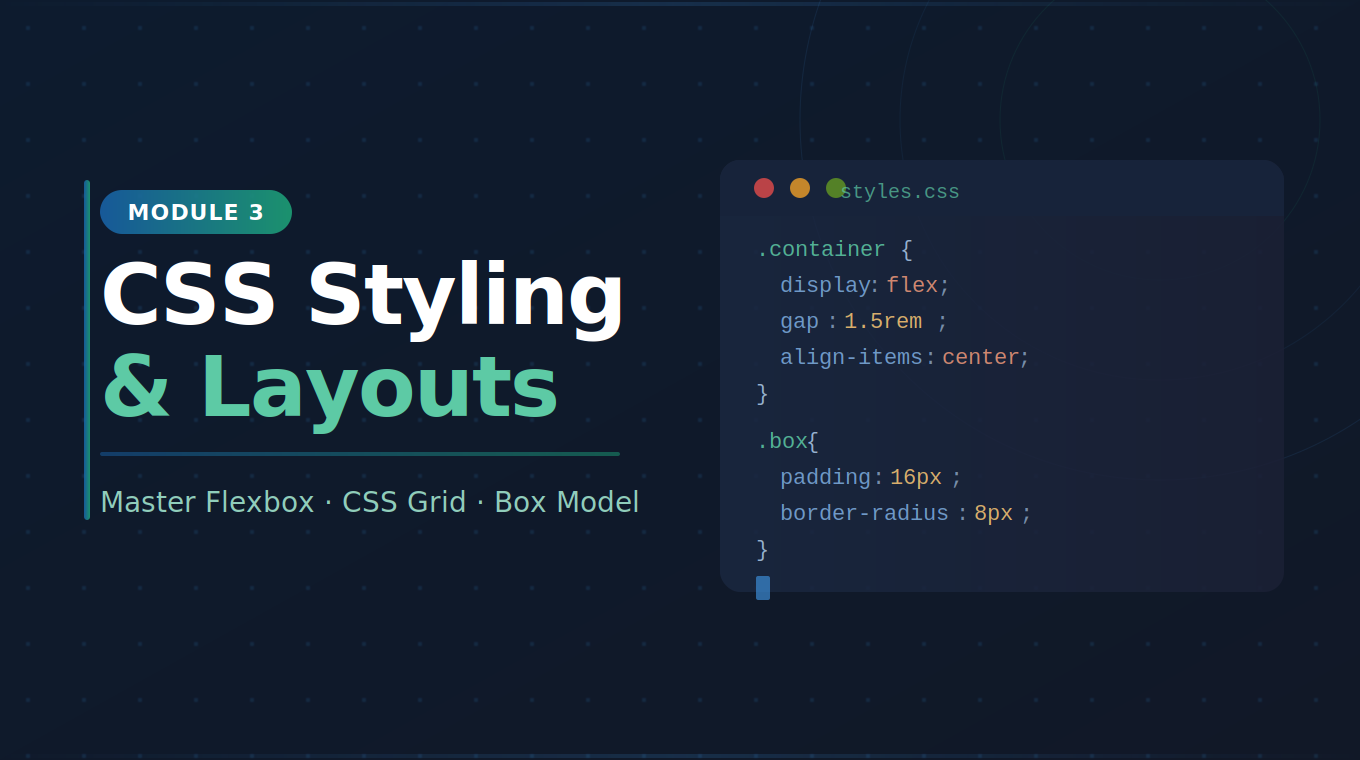
Module 3: CSS Styling & Layouts
Contents
Access
Plan

Instructor
Juriel Comia
About this Course
In this module, you'll learn how to make your HTML pages look great using CSS (Cascading Style Sheets). While HTML gives your page structure, CSS gives it personality-controlling colors, fonts, spacing, and layouts.
Building on what you learned in Module 2, you'll start transforming plain HTML ...
# Syllabus
6 itemsIntroduction to CSS
TextWhat is CSS?
CSS (Cascading Style Sheets) is the language used to style and visually design HTML content. It controls how elements look - their color, size, font, spacing, and position.
How to Add CSS to HTML
There are three ways to apply CSS:
1. Inline CSS
Applied directly to an element using the style attribute:
<p style="color: blue; font-size: 18px;">Hello, World!</p>
2. Internal CSS
Written inside a <style> tag in the <head>:
<head>
  <style>
    p {
      color: blue;
      font-size: 18px;
    }
  </style>
</head>
3. External CSS ✅ (Recommended)
Written in a separate .css file and linked to HTML:
<head>
  <link rel="stylesheet" href="styles.css" />
</head>
/* styles.css */
p {
  color: blue;
  font-size: 18px;
}
CSS Syntax
selector {
  property: value;
}
| Part | Description |
|---|---|
| Selector | Targets the HTML element to style |
| Property | The style attribute to change (e.g. color) |
| Value | The value to apply (e.g. blue) |
CSS Selectors
/* Element selector */
p { color: gray; }

/* Class selector */
.highlight { background: yellow; }

/* ID selector */
#hero { font-size: 32px; }

/* Multiple selectors */
h1, h2, h3 { font-weight: bold; }

/* Descendant selector */
nav a { text-decoration: none; }
Conclusion
- CSS controls the visual appearance of HTML elements
- External CSS is the best practice - keeps styles separate from structure
- CSS syntax follows:
selector { property: value; } - Selectors target elements by tag, class, or ID
Colors, Typography & Backgrounds
TextColors in CSS
/* Named colors */
p { color: tomato; }

/* Hex codes */
h1 { color: #1a3a8a; }

/* RGB */
span { color: rgb(77, 166, 255); }

/* RGBA (with transparency) */
div { background: rgba(0, 0, 0, 0.5); }
Typography
p {
  font-family: 'Arial', sans-serif;
  font-size: 16px;
  font-weight: 400;       /* normal */
  font-style: italic;
  line-height: 1.6;
  letter-spacing: 0.05em;
  text-align: center;     /* left | right | center | justify */
  text-decoration: none;  /* underline | line-through */
  text-transform: uppercase; /* lowercase | capitalize */
  color: #333333;
}
Google Fonts
<!-- Add to <head> in HTML -->
<link href="https://fonts.googleapis.com/css2?family=Poppins:wght@400;700&display=swap" rel="stylesheet" />
body {
  font-family: 'Poppins', sans-serif;
}
Backgrounds
div {
  background-color: #0b1a40;
  background-image: url('bg.jpg');
  background-size: cover;       /* contain | auto */
  background-position: center;
  background-repeat: no-repeat;
}
Borders
div {
  border: 2px solid #4da6ff;
  border-radius: 8px;           /* rounds the corners */
  border-top: 4px solid #4da6ff; /* single side */
}
Conclusion
- Colors can be written as names, hex, RGB, or RGBA
- Typography properties control font, size, weight, spacing, and alignment
- Use Google Fonts to add custom typefaces
- Backgrounds and borders add depth and structure to elements
The CSS Box Model
TextWhat is the Box Model?
Every HTML element is a rectangular box made up of four layers:
┌─────────────────────────────┐
│           MARGIN            │
│  ┌───────────────────────┐  │
│  │        BORDER         │  │
│  │  ┌─────────────────┐  │  │
│  │  │     PADDING     │  │  │
│  │  │  ┌───────────┐  │  │  │
│  │  │  │  CONTENT  │  │  │  │
│  │  │  └───────────┘  │  │  │
│  │  └─────────────────┘  │  │
│  └───────────────────────┘  │
└─────────────────────────────┘
| Layer | Description |
|---|---|
| Content | The actual text or image inside the element |
| Padding | Space between content and the border |
| Border | The outline around the padding |
| Margin | Space outside the border, between elements |
Box Model in CSS
div {
  width: 300px;
  height: 150px;

  padding: 20px;             /* all sides */
  padding: 10px 20px;        /* top/bottom  left/right */
  padding: 10px 20px 15px 5px; /* top right bottom left */

  border: 2px solid #4da6ff;

  margin: 30px;              /* all sides */
  margin: 0 auto;            /* center horizontally */
}
Box Sizing
By default, width only applies to the content area. Use box-sizing: border-box to include padding and border in the total width:
* {
  box-sizing: border-box; /* Best practice — add to every project */
}
Display Property
/* Block — takes full width, starts on new line */
div { display: block; }

/* Inline — flows with text, no width/height */
span { display: inline; }

/* Inline-block — flows with text but accepts width/height */
img { display: inline-block; }

/* Hidden — removes element from layout */
.hidden { display: none; }
Conclusion
- Every element has content, padding, border, and margin
box-sizing: border-boxmakes sizing more predictable- The
displayproperty controls how elements flow on the page
Flexbox
TextWhat is Flexbox?
Flexbox is a CSS layout model that makes it easy to align and distribute elements in a row or column — even when their sizes are unknown.
Setting Up Flexbox
.container {
  display: flex;
}
All direct children of .container become flex items.
Main Axis & Cross Axis
.container {
  display: flex;
  flex-direction: row;    /* default — horizontal */
  flex-direction: column; /* vertical */
}
Alignment
.container {
  display: flex;
  flex-direction: row;

  /* Align along the MAIN axis (horizontal if row) */
  justify-content: flex-start;   /* default */
  justify-content: flex-end;
  justify-content: center;
  justify-content: space-between;
  justify-content: space-around;

  /* Align along the CROSS axis (vertical if row) */
  align-items: stretch;          /* default */
  align-items: flex-start;
  align-items: flex-end;
  align-items: center;

  /* Allow items to wrap to the next line */
  flex-wrap: wrap;
  gap: 16px; /* space between items */
}
Flex Items
.item {
  flex: 1;          /* grow to fill available space equally */
  flex: 0 0 200px;  /* fixed 200px width, no grow/shrink */
  align-self: center; /* override align-items for this item */
}
Practical Example — Navigation Bar
nav {
  display: flex;
  justify-content: space-between;
  align-items: center;
  padding: 16px 32px;
  background: #0b1a40;
}
<nav>
  <div class="logo">BinaryAscent</div>
  <ul class="nav-links">
    <li><a href="#">Home</a></li>
    <li><a href="#">Courses</a></li>
    <li><a href="#">Contact</a></li>
  </ul>
</nav>
Conclusion
display: flexturns a container into a flex layoutjustify-contentaligns items on the main axisalign-itemsaligns items on the cross axisgapadds spacing between flex items
CSS Grid
TextWhat is CSS Grid?
CSS Grid is a two-dimensional layout system — it lets you control both rows AND columns at the same time, making it perfect for full page layouts.
Setting Up a Grid
.container {
  display: grid;
  grid-template-columns: 200px 200px 200px; /* 3 equal columns */
  grid-template-columns: repeat(3, 1fr);    /* same — using fr units */
  grid-template-rows: auto;
  gap: 20px; /* space between rows and columns */
}
The fr Unit
fr stands for fraction — it divides available space proportionally:
.container {
  display: grid;
  grid-template-columns: 1fr 2fr 1fr;
  /* Column 2 is twice as wide as columns 1 and 3 */
}
Placing Items on the Grid
.item {
  grid-column: 1 / 3;  /* spans from column line 1 to 3 */
  grid-row: 1 / 2;     /* spans row line 1 to 2 */
}

/* Shorthand */
.item {
  grid-area: 1 / 1 / 2 / 3; /* row-start / col-start / row-end / col-end */
}
Practical Example — Page Layout
.page {
  display: grid;
  grid-template-columns: 250px 1fr;
  grid-template-rows: 60px 1fr 40px;
  grid-template-areas:
    "header  header"
    "sidebar main"
    "footer  footer";
  min-height: 100vh;
  gap: 0;
}

.header  { grid-area: header; }
.sidebar { grid-area: sidebar; }
.main    { grid-area: main; }
.footer  { grid-area: footer; }
<div class="page">
  <header class="header">Header</header>
  <aside class="sidebar">Sidebar</aside>
  <main class="main">Main Content</main>
  <footer class="footer">Footer</footer>
</div>
Flexbox vs. Grid
| Flexbox | CSS Grid | |
|---|---|---|
| Dimension | One-dimensional (row OR column) | Two-dimensional (rows AND columns) |
| Best for | Navigation bars, card rows, centering | Full page layouts, complex grids |
| Control | Content-driven | Layout-driven |
Tip: Use Flexbox for smaller components and Grid for overall page structure. They work great together!
Conclusion
display: gridturns a container into a grid layoutgrid-template-columnsandgrid-template-rowsdefine the grid structure- The
frunit distributes space proportionally grid-template-areasmakes complex layouts readable and easy to manage
Module 3 Summary
Congratulations on completing Module 3: CSS Styling & Layouts! Here's what you've learned:
| Lesson | Topic | Key Skills |
|---|---|---|
| 1 | Introduction to CSS | Selectors, syntax, linking CSS to HTML |
| 2 | Colors, Typography & Backgrounds | Fonts, colors, borders, backgrounds |
| 3 | The CSS Box Model | Padding, margin, border, display |
| 4 | Flexbox | Alignment, direction, flex items |
| 5 | CSS Grid | Grid columns, rows, areas, fr units |
What's Next?
In Module 4: JavaScript Basics, you'll add interactivity to your pages - making them respond to user actions like clicks, inputs, and events.
Quiz: CSS Styling & Layouts
QuizTest your understanding of the lessons covered in Module 3. Choose the best answer for each question.
Brought to you by