

Module 2: HTML Fundamentals
Contents
Access
Plan

Instructor
Juriel Comia
About this Course
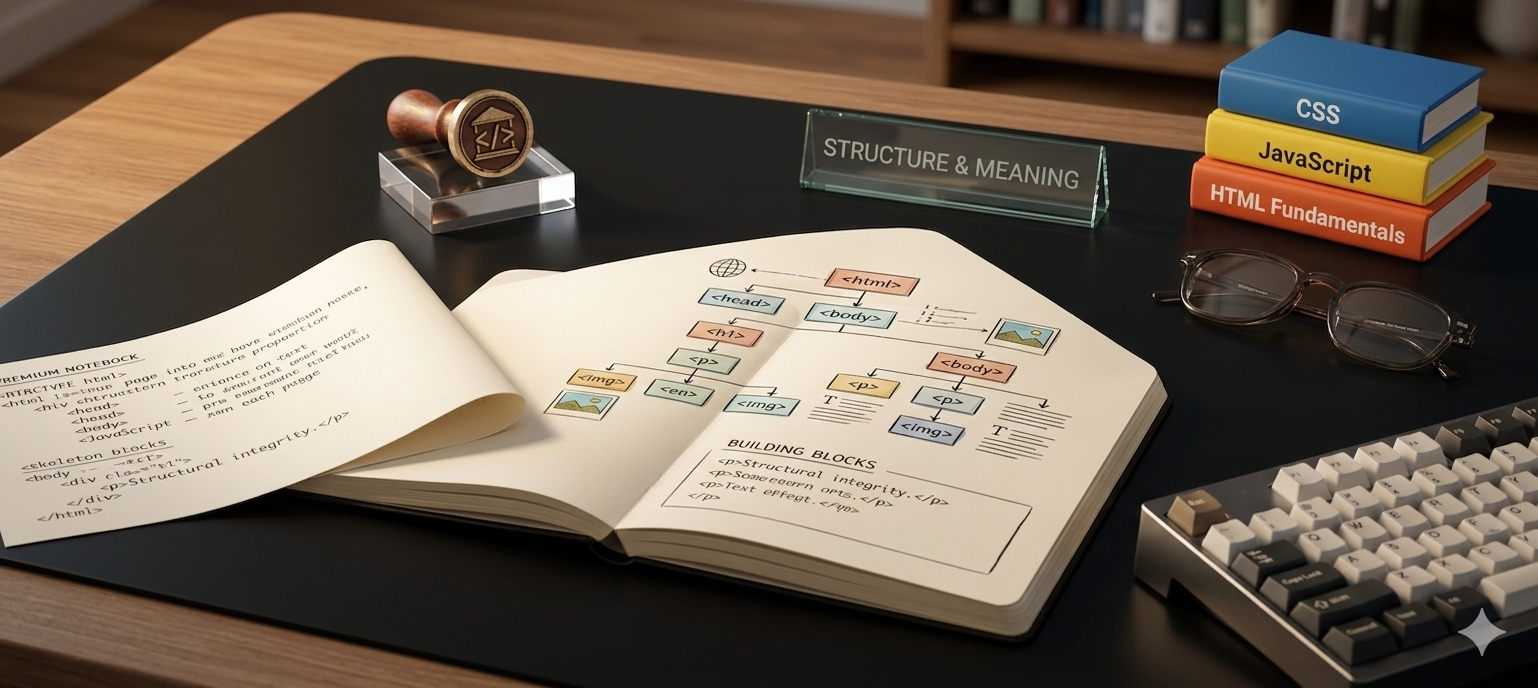
In this module, you'll dive into the foundation of every website — HTML (HyperText Markup Language). HTML is the skeleton of the web; it gives structure and meaning to everything you see on a page, from headings and paragraphs to images, links, and forms.
Building on what you learned in Module ...
# Syllabus
6 itemsHTML Document Structure
TextWhat is HTML?
HTML (HyperText Markup Language) is the standard language used to create and structure content on the web. It tells the browser what to display — headings, paragraphs, images, links, and more.
Anatomy of an HTML Document
Every HTML file follows a standard structure:
<!DOCTYPE html>
<html lang="en">
  <head>
    <meta charset="UTF-8" />
    <meta name="viewport" content="width=device-width, initial-scale=1.0" />
    <title>My First Web Page</title>
  </head>
  <body>
    <h1>Hello, World!</h1>
    <p>This is my first web page.</p>
  </body>
</html>
Breaking It Down
| Part | Purpose |
|---|---|
<!DOCTYPE html> | Tells the browser this is an HTML5 document |
<html> | The root element that wraps all content |
<head> | Contains metadata (not visible on the page) |
<meta charset="UTF-8"> | Sets the character encoding |
<title> | Sets the tab/window title in the browser |
<body> | Contains all visible page content |
How Browsers Parse HTML
When a browser loads an HTML file, it reads the code top to bottom and builds a Document Object Model (DOM) — a tree-like structure representing all elements on the page.
html
├── head
│   ├── meta
│   └── title
└── body
    ├── h1
    └── p
Conclusion
- Every HTML file must start with
<!DOCTYPE html> - The
<head>holds metadata; the<body>holds visible content - Browsers build a DOM tree from your HTML to render the page
HTML Tags & Elements
TextWhat Are Tags and Elements?
An HTML element is made up of an opening tag, content, and a closing tag:
<p>This is a paragraph.</p>
<p>→ opening tagThis is a paragraph.→ content</p>→ closing tag
Some elements are self-closing (they don't have content):
<br />
<hr />
<img src="photo.jpg" alt="A photo" />
Common HTML Tags
Headings
<h1>Main Heading</h1>
<h2>Sub Heading</h2>
<h3>Section Heading</h3>
<!-- h1 through h6, largest to smallest -->
Paragraphs and Text
<p>This is a paragraph of text.</p>
<strong>This text is bold.</strong>
<em>This text is italic.</em>
<br />  <!-- line break -->
<hr />  <!-- horizontal rule / divider -->
Lists
<!-- Unordered List -->
<ul>
  <li>HTML</li>
  <li>CSS</li>
  <li>JavaScript</li>
</ul>

<!-- Ordered List -->
<ol>
  <li>Learn HTML</li>
  <li>Learn CSS</li>
  <li>Build a project</li>
</ol>
Divisions and Spans
<div>
  <!-- Block-level container, used to group elements -->
  <p>A paragraph inside a div.</p>
</div>

<p>This has a <span style="color: red;">red word</span> in it.</p>
<!-- span is inline — wraps part of text -->
Block vs. Inline Elements
| Type | Behavior | Examples |
|---|---|---|
| Block | Starts on a new line, takes full width | <div>, <p>, <h1>, <ul> |
| Inline | Flows within text, only as wide as content | <span>, <strong>, <em>, <a> |
Attributes
Attributes add extra information to elements:
<p class="intro" id="first-para">Hello!</p>
<!--    ↑ class       ↑ id         -->
Common attributes: class, id, style, href, src, alt, type
Conclusion
- Elements = opening tag + content + closing tag
- Headings (
h1–h6), paragraphs, lists,div, andspanare essential building blocks - Block elements stack vertically; inline elements flow with text
Links, Images & Media
TextHyperlinks with <a>
The anchor tag creates clickable links:
<!-- External link -->
<a href="https://www.google.com">Go to Google</a>

<!-- Internal link (to another page in your site) -->
<a href="about.html">About Us</a>

<!-- Opens in a new tab -->
<a href="https://www.google.com" target="_blank" rel="noopener">Open in New Tab</a>

<!-- Link to a section on the same page -->
<a href="#contact">Jump to Contact</a>
<section id="contact">...</section>

<!-- Email link -->
<a href="mailto:[email protected]">Send Email</a>
Images with <img>
<img src="images/photo.jpg" alt="A sunset over the mountains" width="600" height="400" />
| Attribute | Purpose |
|---|---|
src | Path or URL to the image file |
alt | Descriptive text for accessibility and SEO |
width / height | Set display size (in pixels) |
Best Practice: Always include
alttext. Screen readers use it, and it shows if the image fails to load.
Supported Image Formats
| Format | Best For |
|---|---|
.jpg / .jpeg | Photos |
.png | Graphics with transparency |
.gif | Simple animations |
.svg | Icons and illustrations |
.webp | Modern, optimized images |
Video with <video>
<video controls width="640">
  <source src="video.mp4" type="video/mp4" />
  Your browser does not support the video tag.
</video>
Common attributes: controls, autoplay, loop, muted, poster
Audio with <audio>
<audio controls>
  <source src="audio.mp3" type="audio/mpeg" />
  Your browser does not support the audio element.
</audio>
Embedding External Media
<!-- YouTube embed via iframe -->
<iframe
  width="560"
  height="315"
  src="https://www.youtube.com/embed/VIDEO_ID"
  title="YouTube video"
  allowfullscreen>
</iframe>
Conclusion
<a href="...">creates links;target="_blank"opens in a new tab<img>requiressrcand should always havealt- Use
<video>and<audio>for native media;<iframe>for embeds
HTML Forms & Inputs
TextWhat Are Forms?
Forms allow users to input data and send it to a server (e.g., login, sign up, search).
<form action="/submit" method="POST">
  <!-- form fields go here -->
  <button type="submit">Submit</button>
</form>
| Attribute | Purpose |
|---|---|
action | URL where form data is sent |
method | HTTP method: GET (URL params) or POST (body) |
Input Types
<!-- Text -->
<input type="text" name="username" placeholder="Enter your name" />

<!-- Password -->
<input type="password" name="password" placeholder="Password" />

<!-- Email -->
<input type="email" name="email" placeholder="[email protected]" />

<!-- Number -->
<input type="number" name="age" min="1" max="100" />

<!-- Checkbox -->
<input type="checkbox" name="terms" id="terms" />
<label for="terms">I agree to the terms</label>

<!-- Radio Buttons -->
<input type="radio" name="gender" value="male" id="male" />
<label for="male">Male</label>

<input type="radio" name="gender" value="female" id="female" />
<label for="female">Female</label>

<!-- File Upload -->
<input type="file" name="photo" accept="image/*" />

<!-- Hidden Field -->
<input type="hidden" name="token" value="abc123" />
Textarea and Select
<!-- Multi-line text -->
<textarea name="message" rows="5" cols="40" placeholder="Your message..."></textarea>

<!-- Dropdown -->
<select name="country">
  <option value="">-- Select Country --</option>
  <option value="ph">Philippines</option>
  <option value="us">United States</option>
  <option value="uk">United Kingdom</option>
</select>
Labels and Accessibility
Always link <label> to its input using for and id:
<label for="email">Email Address</label>
<input type="email" id="email" name="email" />
This improves accessibility — clicking the label focuses the input.
A Complete Form Example
<form action="/register" method="POST">
  <label for="name">Full Name</label>
  <input type="text" id="name" name="name" required />

  <label for="email">Email</label>
  <input type="email" id="email" name="email" required />

  <label for="password">Password</label>
  <input type="password" id="password" name="password" minlength="8" required />

  <label for="role">Role</label>
  <select id="role" name="role">
    <option value="student">Student</option>
    <option value="teacher">Teacher</option>
  </select>

  <button type="submit">Create Account</button>
  <button type="reset">Clear</button>
</form>
Conclusion
<form>wraps all fields; useactionandmethodto control submission<input>has many types: text, email, password, checkbox, radio, file, and more- Always pair
<label>with inputs for better accessibility required,minlength,min,maxadd basic validation
Semantic HTML & Summary
TextWhat is Semantic HTML?
Semantic HTML uses elements that describe their meaning, not just their appearance. Instead of using <div> for everything, semantic tags tell browsers and assistive technologies what each section is.
Non-Semantic vs. Semantic
<!-- ❌ Non-semantic (tells us nothing) -->
<div id="header">...</div>
<div id="nav">...</div>
<div id="content">...</div>
<div id="footer">...</div>

<!-- ✅ Semantic (clear and meaningful) -->
<header>...</header>
<nav>...</nav>
<main>...</main>
<footer>...</footer>
Core Semantic Elements
<header>
<!-- Site logo, title, top navigation -->
</header>
<nav>
<ul>
<li><a href="/">Home</a></li>
<li><a href="/about">About</a></li>
</ul>
</nav>
<main>
<article>
<!-- Standalone content: blog post, news article -->
<h1>Article Title</h1>
<p>Article content...</p>
</article>
<aside>
<!-- Sidebar: related links, ads, author bio -->
</aside>
</main>
<section>
<!-- A themed group of content within a page -->
<h2>Our Services</h2>
</section>
<footer>
<!-- Copyright, links, contact info -->
<p>© 2025 My Website</p>
</footer>
Additional Semantic Tags
| Tag | Use |
|---|---|
<figure> | Wraps an image/media with its caption |
<figcaption> | Caption for a <figure> |
<time> | Dates and times |
<mark> | Highlighted text |
<details> / <summary> | Expandable content |
<address> | Contact information |
Why Semantics Matter
- Accessibility — Screen readers use semantic tags to help users navigate
- SEO — Search engines better understand your content structure
- Maintainability — Code is easier to read and maintain
- Browser Compatibility — Consistent rendering across browsers
A Full Semantic Page Layout
<!DOCTYPE html>
<html lang="en">
<head>
<meta charset="UTF-8" />
<title>My Portfolio</title>
</head>
<body>
<header>
<h1>Jane Doe</h1>
<nav>
<ul>
<li><a href="#about">About</a></li>
<li><a href="#projects">Projects</a></li>
<li><a href="#contact">Contact</a></li>
</ul>
</nav>
</header>
<main>
<section id="about">
<h2>About Me</h2>
<p>I'm a front-end developer based in Manila.</p>
</section>
<section id="projects">
<h2>Projects</h2>
<article>
<h3>Project One</h3>
<p>A web app built with HTML and CSS.</p>
</article>
</section>
</main>
<footer>
<address>
Contact me at <a href="mailto:[email protected]">[email protected]</a>
</address>
<p>© 2025 Jane Doe</p>
</footer>
</body>
</html>
Module 2 Summary
Congratulations on completing Module 2: HTML Fundamentals! Here's what you've learned:
| Lesson | Topic | Key Skills |
|---|---|---|
| 1 | Document Structure | DOCTYPE, <html>, <head>, <body>, DOM |
| 2 | Tags & Elements | Headings, lists, block vs. inline, attributes |
| 3 | Links, Images & Media | <a>, <img>, <video>, <audio>, <iframe> |
| 4 | Forms & Inputs | <form>, <input> types, labels, accessibility |
| 5 | Semantic HTML | <header>, <nav>, <main>, <footer>, SEO |
Quiz: HTML Fundamentals
QuizTest your understanding of the lessons covered in Module 2. Choose the best answer for each question.
Brought to you by